Find your way around
After you sign in you land on the Dashboard.
The layout
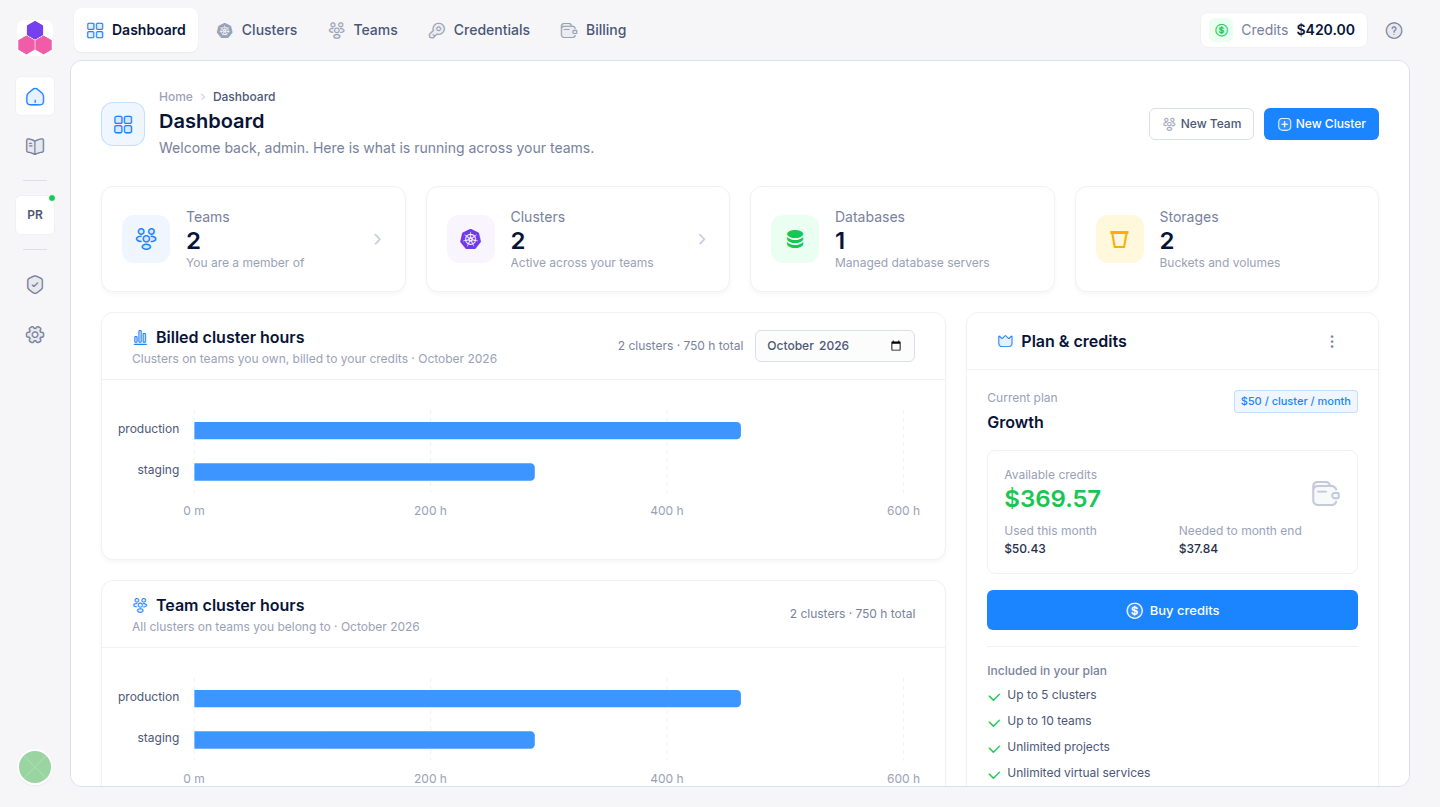
| Area | What is there |
|---|---|
| Top bar | The main sections: Dashboard, Clusters, Teams, Credentials and Billing. On the right, your credit balance and a link to this documentation. |
| Left rail | Dashboard, Documentation and Support. Below them, the clusters you have bookmarked, for one-click access. At the bottom, your account menu: profile, billing, dark mode and sign out. |
| Page header | The page title, a short summary and the main actions for the page, such as New Cluster. |
On a phone, the top bar and the rail fold into a menu button.
The dashboard
- Tiles count your teams, active clusters, databases and storages. Click Teams or Clusters to open that section.
- Billed cluster hours shows how long each cluster on teams you own ran in a month. Pick another month with the month selector.
- Team cluster hours shows the same for every team you belong to, for the current month.
- Plan & credits shows your plan, your credit balance and what this month's clusters still need. See Billing and credits.
- Recent activity lists clusters, node groups, databases and storages that changed recently, with their status. Click one to open it.
- Quick actions start the most common tasks: a new cluster, a new team, credentials, documentation.
Common patterns
- Row menus. Most cards and table rows have a ⋮ button with the actions for that item: open, edit, delete and so on. An action you are not allowed to take is either hidden or refused with a message.
- Status badges. Every cluster, node group, storage and database shows its state. While something is being created, scaled, upgraded or deleted, the page checks every 30 seconds and refreshes by itself. See Troubleshooting and support for what each status means.
- Copy buttons. Endpoints, namespaces, user names and passwords have a copy button next to them.
- Confirm by typing. Deleting a cluster, node group, storage, database, virtual service, credential or team asks you to type its name first.
- Bookmarks. From a cluster's ⋮ menu choose Add to bookmarks to pin it to the left rail.
- Dark mode. Switch it on from the account menu at the bottom of the left rail.