
Edit, upgrade or delete a cluster
All three actions are on the cluster card's ⋮ menu on the Clusters page, and need Admin access to the cluster's team.
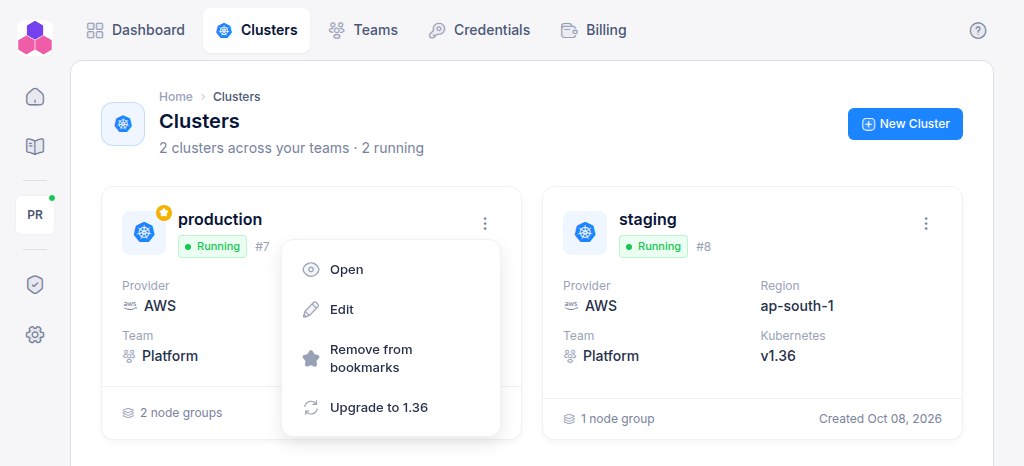
Edit
Choose Edit to change:
- Cluster name: the display name. The cluster's addresses do not change.
- Team: move the cluster to another team where you are an Admin. Members of the old team lose access and members of the new team gain it.
- Delete protection: while Enabled, the cluster cannot be deleted from the console or the API. Turn it on for production clusters.
Upgrade Kubernetes
When a newer Kubernetes version is available, the card shows a green v1.xx available badge and the menu shows Upgrade to 1.xx.
- Click the badge or the menu item.
- Read the warning and click Proceed.
- Type the cluster name to confirm.
The cluster shows Upgrading while it works through these steps:
- The control plane and core add-ons move to the new version.
- New node groups are created on the new version, with the same settings as the old ones.
- Pods are restarted one at a time, so they move onto the new nodes.
- The old node groups are removed.
If no new node comes up, the upgrade stops at step 2 and the old node groups keep running. A notice appears when the upgrade has finished.
Before you upgrade:
- The cluster must be Running with no other change in progress. An upgrade can't start while the cluster or one of its node groups is being created, scaled or deleted.
- Every node group needs a minimum of at least 1 node. The upgrade is refused while any group has a minimum of 0. Scale those groups first.
- Give critical workloads more than one replica, so they keep serving while their pods are restarted.
- Contact support first for busy production clusters. Upgrades can briefly disrupt workloads, and nodes can get stuck in an availability zone with no spare capacity.
Delete
Choose Delete and type the cluster name to confirm. The cluster shows Deleting, and its card disappears once the cloud has confirmed the teardown. This removes:
- the cluster's projects and virtual services from the console,
- the cluster's wildcard DNS record and its CI/CD logs bucket,
- the cluster itself, all its node groups and the network created for it.
Check for leftover disks. Persistent volumes your workloads created (EBS volumes on AWS) are not deleted with the cluster, and your cloud provider keeps billing for them. After the delete, look in your cloud console (EC2 → Volumes on AWS) for volumes tagged with the cluster's internal name
c-<cluster ID>, and delete the ones you no longer need.
The menu has no Delete item while:
- delete protection is on (edit the cluster to turn it off), or
- the cluster is being created, upgraded or deleted.
Delete is also refused while the cluster still has storages or databases. Delete those first from their tabs: they hold your data, so they are never removed as a side effect.
If a delete fails part-way, the cluster shows Error and stays listed, so nothing is lost track of. Choose Delete again to retry. Billing stops when the cluster is gone.