
Storage
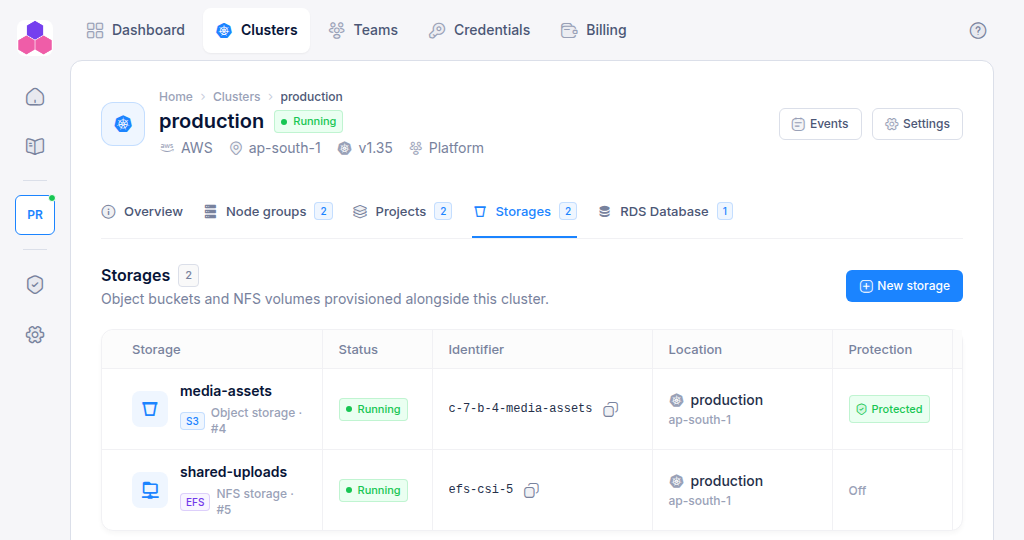
Storage is created in your cloud account, next to a cluster, and is listed on the cluster's Storages tab. There are two kinds:
| Type | On AWS | Use it for |
|---|---|---|
| Object storage | An S3 bucket | Files your application reads and writes through the S3 API: uploads, media, backups. |
| NFS storage | An EFS file system | A shared folder that many pods can mount at once, read-write, across nodes and zones. |
If a cluster's cloud does not offer one of these, it is missing from the list. If it offers neither, the tab says Storages are not available.
Create storage
- Open the cluster and select the Storages tab.
- Click New storage, choose the storage type and enter a name, for example
media-assets. - Click Create storage.
You need Admin access to the cluster's team. The storage shows Creating, then Running. Its Identifier column then shows what to use it by:
| Type | Identifier | Example |
|---|---|---|
| Object storage | The bucket name | c-42-b-7-media-assets |
| NFS storage | A Kubernetes storage class | efs-csi-8 |
Use NFS storage from a pod
Request a volume from the storage class with a PersistentVolumeClaim, then mount it in your pods:
apiVersion: v1
kind: PersistentVolumeClaim
metadata:
  name: shared-uploads
  namespace: storefront
spec:
  accessModes:
    - ReadWriteMany
  storageClassName: efs-csi-8
  resources:
    requests:
      storage: 5Gi
Each claim gets its own directory on the file system. Volumes from this class are kept when their claim is deleted, so data is not lost by accident.
Use object storage
Your application reaches the bucket through the S3 API with the bucket name from the Identifier column. The bucket is private. Give your application access with an IAM user or role from your own AWS account.
View, protect and delete
From the row's ⋮ menu:
- View shows the type, name and identifier with copy buttons.
- Edit turns delete protection on or off. While it is on, the storage cannot be deleted. Team Admins only.
- Delete removes the storage and everything in it: every object in a bucket, every file on an NFS volume. Type the name to confirm. Team Admins only.
A cluster cannot be deleted while it still has storage. Delete the storage first.