
Cloud credentials
A credential holds the keys to one of your cloud accounts. Clusters, node groups, storage and databases are created in that account with these keys, and your cloud provider bills you for them directly.
Credentials are personal: only you can see and use the ones you add. When you create a cluster for a team, the cluster uses your credential, and the other members manage it without ever seeing the keys.
Add a credential
Open Credentials, click New Credential, choose the provider and enter a name, then fill in the keys:
Amazon Web Services
| Field | Where to get it |
|---|---|
| AWS access key ID | IAM → Users → your user → Security credentials → Create access key |
| AWS secret access key | Shown once, when the access key is created |
The IAM user needs permission to create and manage EKS clusters and what they use: EC2, VPC, CloudFormation, IAM roles, Auto Scaling and Elastic Load Balancing, plus S3, EFS and RDS if you will create storage and databases. The eksctl minimum IAM policies list the cluster permissions in detail. Many teams use a dedicated AWS account and give this user administrator access there.
Google Cloud
| Field | Where to get it |
|---|---|
| GCP project ID | The ID of the project to create clusters in |
| Service account key file | IAM & Admin → Service Accounts → create or pick an account → Keys → Add key (JSON). Paste the whole file. |
Microsoft Azure
| Field | What it is |
|---|---|
| Azure username | The service principal's application (client) ID |
| Azure password | The service principal's client secret |
| Azure tenant ID | Your directory (tenant) ID |
| Azure subscription ID | The subscription to create clusters in |
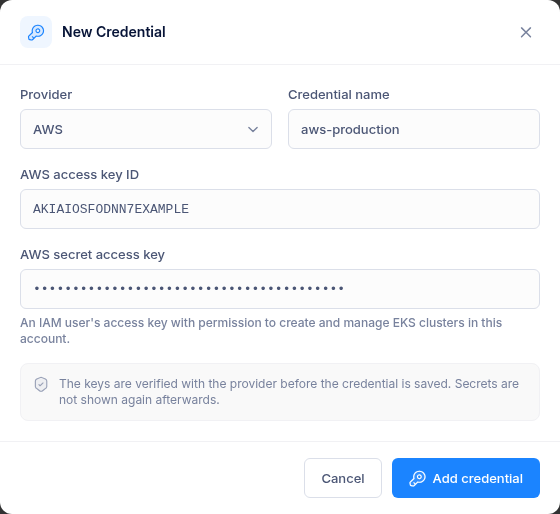
Click Add credential. The keys are checked with the provider first. If they are rejected, nothing is saved and you see an error.
The credentials page
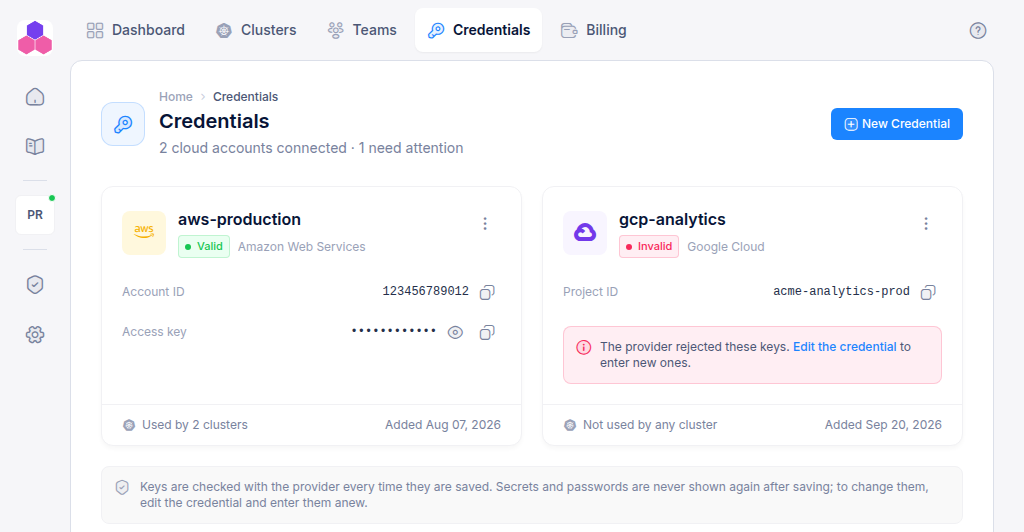
Each credential card shows:
- Valid or Invalid: whether the provider accepted the keys the last time they were checked. An invalid credential shows a link to edit it.
- The account or project ID (AWS, Google Cloud), with a copy button.
- The access key (AWS) or user name (Azure), masked. Click the eye to show it.
- How many clusters use it.
Secrets, passwords and tenant IDs are never shown again after they are saved.
Rotate keys
When you rotate keys in your cloud account, choose Edit from the credential's ⋮ menu and enter the new ones. They are checked before they are saved. For AWS, the console's connection to every cluster that uses the credential switches to the new keys. Delete the old keys in your cloud console only after the new ones are saved.
On AWS, create the new keys for the same IAM user. A cluster's admin rights belong to the IAM user that created it, so another user's keys are accepted as valid but cannot manage the existing clusters.
Delete a credential
Choose Delete and type the name to confirm. A credential that a cluster still uses cannot be deleted. Delete those clusters first, or keep the credential.