Billing and credits
The platform charges for clusters only. You pay for them with prepaid credits, where one credit is one US dollar. Everything a cluster runs on (nodes, disks, load balancers, storage, databases) is in your own cloud account and is billed to you by your cloud provider, not here.
Open Billing from the top bar, or the account menu, to see your plan, your balance and your payment history.
How clusters are billed
- Your plan sets a monthly rate per cluster, for example $50 / cluster / month.
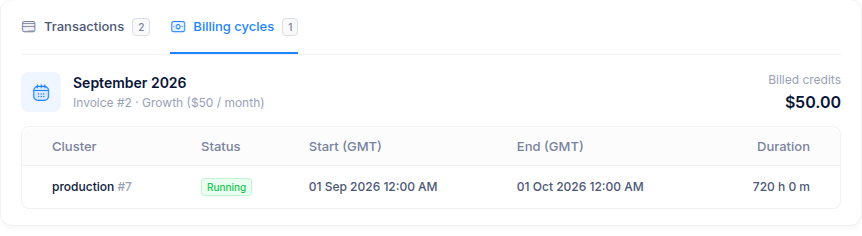
- Each cluster is billed pro rata by the minute it existed during the month: a cluster that ran for half of September costs half the monthly rate for September.
- Clusters are billed to the owner of the team they belong to, whoever created them.
- The bill is settled on the 1st of each month for the month before, and the credits are deducted from your balance.
Plan & credits
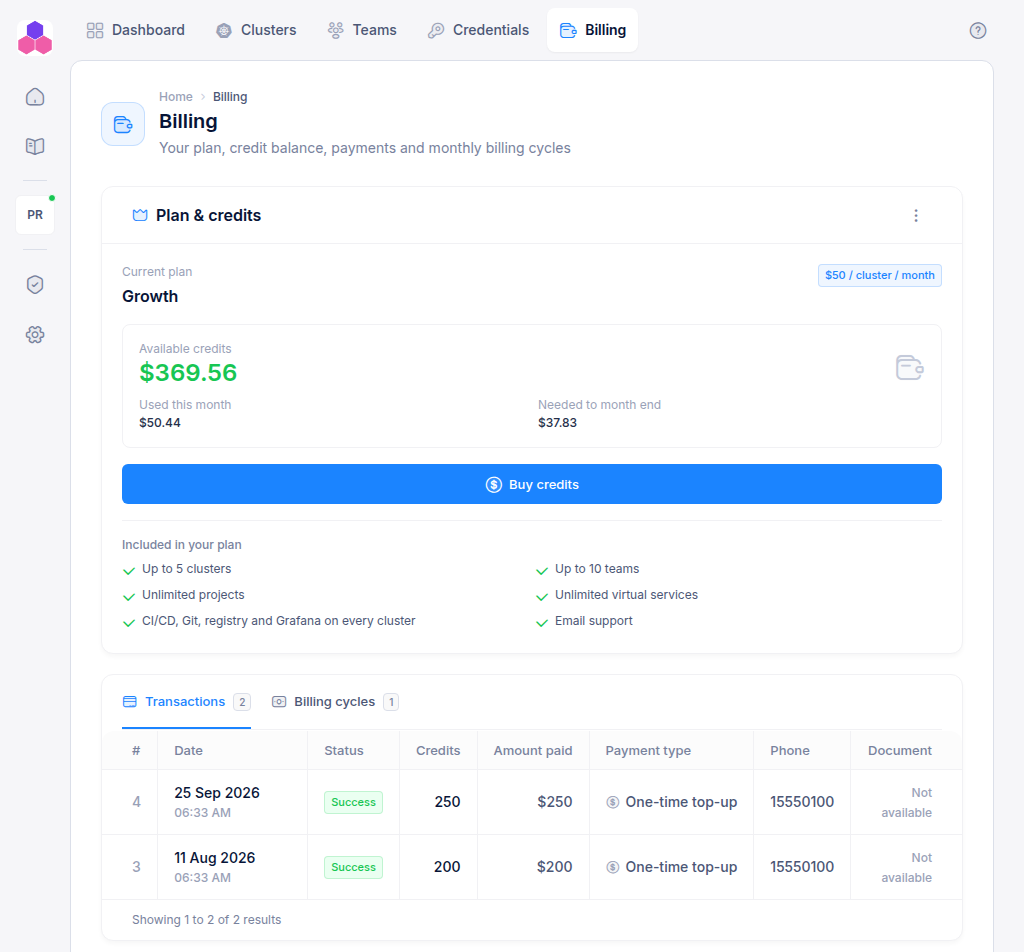
This card appears on the Dashboard and the Billing page:
| Item | Meaning |
|---|---|
| Current plan | Your plan and its rate per cluster per month |
| Available credits | Your balance after this month's usage so far. It is shown in red when it will not cover the month. |
| Used this month | What your clusters have used since the 1st |
| Needed to month end | What your current clusters will use until the end of the month |
| Included in your plan | The plan's limits and features |
If you see "You don't have enough credits for the current billing cycle", buy credits before the month ends.
Buy credits
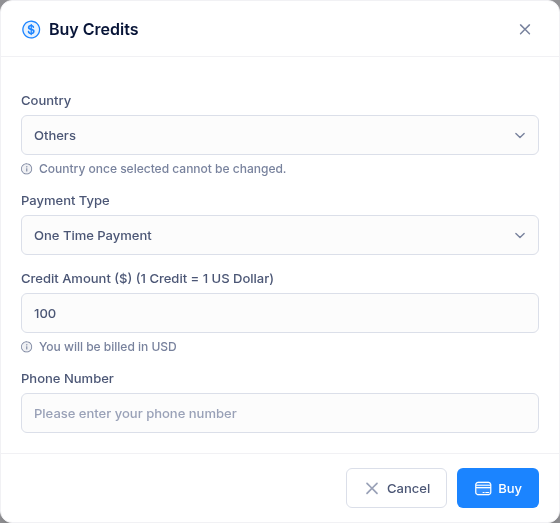
- Click Buy credits.
- Choose your country. India is billed in INR, every other country in USD. You choose the country once: it cannot be changed afterwards.
- Choose the payment type:
- One Time Payment adds the credits once.
- Monthly Subscription charges the same amount every month and adds the credits each time it is paid.
- Enter the number of credits (whole dollars) and your phone number.
- Click Buy. You are taken to a secure Stripe checkout page to pay.
The credits are added to your balance as soon as the payment goes through.
Manage a subscription
With an active subscription, the card shows its monthly amount, and its ⋮ menu has Manage subscription. This opens the Stripe customer portal, where you can update the payment method, see invoices or cancel the subscription.
Change your plan
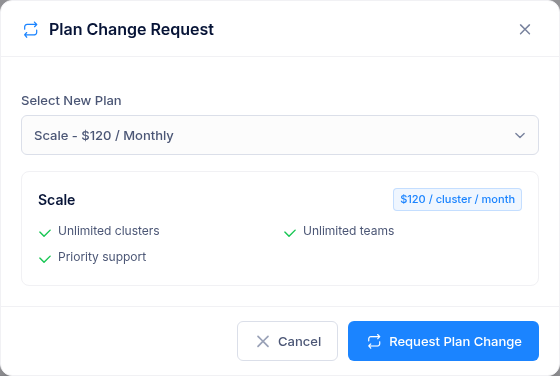
- From the Plan & credits card's ⋮ menu, choose Request plan change.
- Pick the new plan. Its rate and features are shown for comparison.
- Click Request Plan Change and confirm.
The new plan applies from the next billing cycle, on the 1st of next month. Until then the card shows the pending request, and Cancel plan change request withdraws it.
Plans limit how many teams, clusters, projects and virtual services you can have. Limits for a team's resources come from the team owner's plan. When a limit is reached, creating another is refused with "You have reached your Billing Plan limit".
Payment history
The Billing page has two tabs:
- Transactions: every credit purchase and subscription payment, with its date, status, credits, amount paid and payment type. Use Receipt or Invoice to open Stripe's document.
- Billing cycles: one entry per month, with the credits billed and, for each cluster, when billing started and ended and for how long. Clusters that have since been deleted are marked Deleted.